Different ways to open an Access form using DoCmd.OpenForm
A form in MS Access has many properties that determine its behaviour.
These properties concern the way data are presented, possible filters, how the form can be used to enter of edit data etcetera.
When you design your form, that is the time you will decide on the defaults for your form.
However you may want to use roughly the same form in different ways.
A powerful way to change from the design-time default behaviour is by specifying the DocDmd.OpenForm arguments,
which is presented here.
OpenForm with FormName
The simple way to open a form is by supplying the FormName and keeping all the defaults.
DoCmd.OpenForm FormName:="Customer"
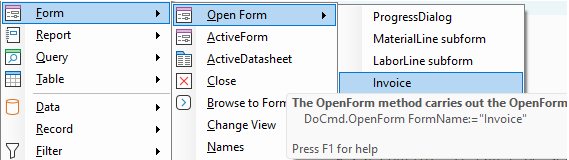
When opened this way Access interprets the command with defaults as here:
DoCmd.OpenForm FormName:="Customer", View:=acNormal, DataMode:=acFormPropertySettings,
               WindowMode:=acWindowNormal

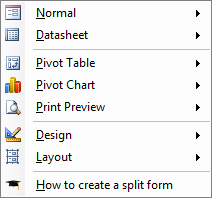
OpenForm View Mode
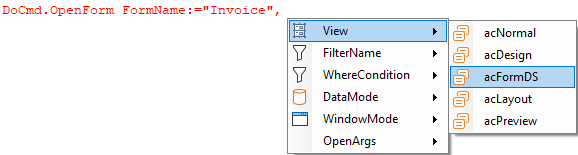
The most common ways to open a form are as Form (acNormal - default) or as Datasheet (acFormDS - as a table). acDesign and acLayout are only relevant for development use, not in applications for end users.
DoCmd.OpenForm FormName:="Invoice", View:=acFormDS
OpenForm using FilterName
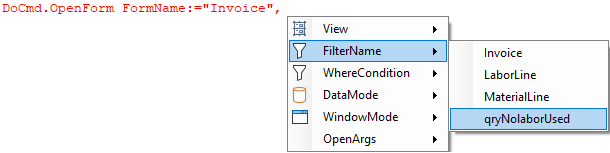
FilterName refers to a query in the current database. You can use either an existing query or a filter that was saved as a query. You can use it both for getting a subset and for having it sorted.
DoCmd.OpenForm FormName:="Invoice", FilterName:="qryNolaborUsed"
OpenForm Where Condition
A valid SQL WHERE clause (without the word WHERE) to select records from the form's underlying table or query. If you select a filter with the Filter Name argument, Access applies this WHERE clause to the results of the filter.
To open a form and restrict its records to those specified by the value of a control on another form, use the following expression:
[fieldname] = Forms![formname]![controlname on other form]
Replace fieldname with the name of a field in the underlying table or query of the form you want to open. Replace formname and controlname on other form with the name of the other form and the control on the other form that contains the value you want records in the first form to match.
Data mode
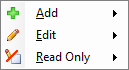
If you leave the DataMode argument blank the default constant, acFormPropertySettings, is assumed. This opens the form in the data mode set by the form's AllowEdits, AllowDeletions, AllowAdditions and DataEntry properties.
The other possible DataMode values are:
- acFormAdd - which opens the form on a 'new' (empty) record allowing the user to create a new record.
- acFormEdit - shows the contect of the current selected record and allows editing.
- acFormReadOnly- no adding or editing allowed.
OpenForm WindowMode
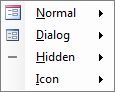
The default value acWindowNormal shows the form as normally done in Access. Using acDialog causes the form's Modal and PopUp properties to be set to Yes. With acDialog the code that opened the form as dialog will not continue until the form is closed.
OpenForm OpenArgs
OpenArgs gives an opportunity to pass data to the form which it then can pick up in the Form_Open event. Example of how to do that can be found here.