Creating an email macro
The VBA Mailer Create Email Macro makes it easy to get up and running with your required email process using VBA. Directly after setting up the initial code you will in most cases use the Email Template Editor to easily create the VBA code that creates the HTML that makes the body content of your email.

Create VBA code to send an email
Pressing OK inserts a procedure SendMail with boilerplate code. It represents the most basic use: create VBA code to send an email. The wizard allows two choices: what format should the email support (normally HTML) and what to do with a created email (Send or ...)
Sub SendMail()
    Dim appMailer As VBAMailer.Application
    Set appMailer = New VBAMailer.Application
    Dim mi As VBAMailer.MailItem
    Set mi = appMailer.CreateItem(OlItemType.olMailItem)
    With mi
        .SendUsingAccount = appMailer.Session.GetAccountForEmailAddress("[email protected]")
        .Subject = ""
        .HTMLBody =
        .Send
    End With
    Set mi = Nothing
    Set appMailer = Nothing
End Sub
OlItemType enumeration with currently only olMailItem included.
Private Enum OlItemType
    olMailItem = 0
End Enum
From - email account sender
Select the email account you want use to to send the email. On first use you will not yet have configured an email account.
Press New email account... to open the email account configuration dialog. The line with .SendUsingAccount is optional. If missing the account set as Default is used.
Subject
Enter what you want to appear in the Subject line of the email.
What format to use for an email
Today, email has two formats: HTML and Plain Text.
Generally HTML emails are preferred as plain text has little expressiveness.
When sending an email VBA Mailer includes both formats.
For this, it automatically converts whatever is supplied to the other format.
What the recipients sees depends on the settings of his computer and his email client.
If you want to fully determine both formats, select Both Formats. The code will then add two lines,
the second to be assigned a plain text string.
.HTMLBody
.Body
Alternatives to Send: Display or Save
It is often required to first verify an email before sending it. If you select Display
the .Display method takes the place of the .Send method.
When you run the macro the WYSIWYG Email Editor included in VBA Mailer opens, allowing you to review the email and
possibly make changes before sending.
Alternatively, you may choose Save. This saves the email to the web server - provided you supplied the required IMAP details in the email account setup.
Procedure name
If the mail only goes to a single recipient you now are ready to supply a suitable procedure name and press OK. This closes the dialog and inserts the new procedure with boilerplate code (as above) for the email process.
Edit the message body
With the boilerplate code in place you can now start editing the message. If you selected Plain Text, you can simply add text strings with line breaks
.Body = "Hello" & strName & _
"How are you?"
If you want the email to look nice using HTML:
- Put the cursor in the procedure somewhere between
With miand itsEnd With - From the menu, start Email Template Editor
Multiple recipients
It is common that you want to send the email to multiple recipients. They may all get the same email, or each a customized version, which you specify using the checkbox Send a separate Email to each recipient.
Send a separate Email to each recipient
A reason to choose this can be
- You don't want the recipient to know who else got the same email.
- Each recipient is required to get a customized version of the email. This may be limited to the greeting line, or may concern the complete body for example with invoicing. For more info see email merge.
With Multiple recipients from source listing selected the dialog expands showing potential sources to retrieve recipients from.
.To = in a ; separated string.
The benefit of obtaining recipients from source listings are: 1. you don't have to edit the SendEmailVBA code, and 2. such listings can be shared by different mail macros.
Which sources can be used differs for each Office application. In all cases collection. Excel in addition allows Worksheet, Table (ListObject) and Range, in MS Access extra source options are Table, Query and Form. For more info on those follow the links - here only collection is presented.
Recipients Collection functions
The most basic way to work with multiple recipients is by using VBA collections of email addresses. We propose to provide uc collections using Recipients Collection functions: functions that return a collection and have no arguments. Having selected Collection as source type, the Source Name combo shows all such functions in the project, plus on top New ....
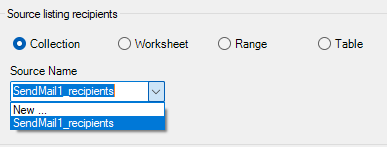
Create new Recipients Collection function
If New ... is selected, Inputbox Give recipients collection function name
appears with as default input: [macroname]_recipients.
On Inputbox OK the new Recipients Collection function is inserted in the current VBA module:
Function SendMail1_recipients() As Collection
'collection of email addresses
    Dim col As Collection: Set col = New Collection
    With col
        .Add "[email protected]"
        .Add "[email protected]"
    End With
    Set SendMail1_recipients = col
End Function
Looping the Recipients Collection
The new email macro is no complete. Pressing OK inserts the email macro code, here spcifically with getting the Recipients from the collection function.
Sub SendMail()
    Dim appMailer As VBAMailer.Application
    Set appMailer = New VBAMailer.Application
    Dim mi As VBAMailer.MailItem
    Dim col As Collection
    Set col = SendMail1_recipients()
    Dim EmailAddress As Variant
    Set mi = appMailer.CreateItem(OlItemType.olMailItem)
    For Each EmailAddress In col
        mi.Recipients.Add EmailAddress
    Next EmailAddress
    With mi
        .SendUsingAccount = appMailer.Session.GetAccountForEmailAddress("[email protected]")
        .subject = ""
        .HTMLBody =
        .Send
    End With
HandleExit:
    Set col = Nothing
    Set mi = Nothing
    Set appMailer = Nothing
End Sub
Add code to a procedure
All the above also applies to adding code to a procedure. To add code to a procedure:
- Put the cursor in the procedure where you want the email code to be added.
- In the VBA Mailer menu select Add Email Code.