Preference settings
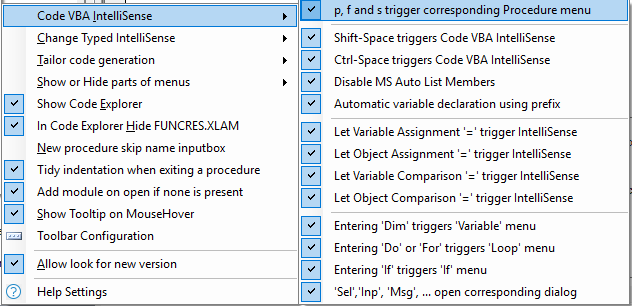
Every programmer has a personal approach to coding. This page discusses the preferences available in Code VBA to give you optimal support, both by matching your programming style and allowing you to specify when and how support is initiated.
| Alt-C | Menu: Code VBA » Preferences » |
The main task of Code VBA is to assist you effectively in producing code. This requires the coding assistant to
- Produce code that alligns with your coding style and conventions;
- Proactively react to the coding context without becoming annoying;
- Let you select from all relevant continuations without overwhelming you.
Preferences related to the first requirement are discussed under Tailor code generation. Initially, opening menus and builders to create code relevant for the code context is done maximally. The submenu Code VBA IntelliSense allows you to disable specific triggers for ` menus or builders you don't want to open automatically - you may want to initiate them yourself instead. The menu variable assignment has a submenu named 'VBA' which gives a many built-in and custom functions an code snippets. You can alter this under Change Typed IntelliSense. Some parts that systematically belong to a menu are optionally hidden because they are considered not helpful. Such decisions can be changed under
Code VBA IntelliSense
p, f and s trigger corresponding Procedure menu
These menus only get triggered if the cursor is outside a procedure. 's' concludes you intend to make a Sub procedure, and, in addition to the simple code suggest adding scope (Public/Private), the procedure builder with errorhandling and header comment and, in case of Excel and Word, the Macro Recorder and Macro Creator dialog for conveniently starting the procedure from the ribbon. 'f' triggers a Function is intended, select the return type from the submenu. 'p' is interpreted as any of the above, now also including the Property Builder dialog if you are in a class module. Disable if you want to generally start IntelliSense yourself using Shift-Space.
Shift-Space triggers Code VBA IntelliSense
Shift-Space is the default way to activate Code VBA IntelliSense. You may want to disable it and use Control-Space instead if you experience accidental opening of menus frequently caused by not having releases the Shift-key in time.
Control-Space use Code VBA InstelliSense
If checked, the more extensive and context sensitive shortcut menu Code VBA InstelliSense menu replaces the VBE built-in approach.
. (dot) triggers Members menu
The IntelliSense built in by Microsoft in the vb editor in many cases is of limited use giving just an alphabetic list of what may be typed. Code VBA provides a menu that shows all members of the class in a more organized way. However, you may be so used to it the old way you may really want that anyway. If so, unchecking this preference will make MS Auto List Members available again, replacing the Code VBA alternative.
Automatic variable declaration using prefix
If you are familiar with (old school) VB naming conventions you may accelerate declaration of variables by for example typing strName=. With this preference set the variable declaration is automatically added:
Dim strName As String
strName =
Note that to recognize the string as prefix it needs to be a. lowercase and b. optionally followed by Upper case.
'=' trigger IntelliSense menu
the '=' is used both for assigning an object or a value to a variable or object property, or for comparing values.
Code VBA can optionally use this '=' as a trigger (e.g. strName=) to open a menu to let you select a value, an expression or even create a new variable or function.
It is possible that you find this kind of assistance 'too much', and only want the menu to appear if you ask for it by using shift space
Shift-Space. If so, you may selectively turn of the trigger behaviour for the below cases.
Let Variable Assignment '=' trigger IntelliSense
The variable assignment gives a menu with expressions that may be considered good choices given the type of the variable in question. ' As an example, in case of a numeric variable, the menu will show all numeric variables available in the code context. Additionaly, through submenu VBA, it shows all available built-in functions that may provide a suitable value, and so on. Again, if you consider this to interfere with your flow, you can disable this behaviour here and make the menu to appear using Shift-Space.
Let Object Assignment '=' trigger IntelliSense
The Object Assignment menu is less overwhelming than the variable assignment above, and shows all possibilities to set the Object variable, possibly ones you were not aware of. It also conveniently adds the mandatory Set keyword at the beginning of the statement. So even if you decide to turn of the variable assignment trigger, you may well keep this one on.
Let Variable Comparison '=' trigger IntelliSense
The menu opened for Variable Comparison, which typically appears in If statements and Do loops (e.g. If str= Then ), is much more modest.
It is limited to variables and object properties of the same type which in most cases is what you need.
Let Object Comparison '=' trigger IntelliSense
The menu opened for Object Comparison is small, only containing variables of the same type or Object or 'Nothing'. It also corrects the '=' to 'Is'. Being so modest there seems little reason to disable this behaviour, unless you really want to only have IntelliSense menus when you explicitly trigger them.
Entering 'Dim' triggers 'Variable' menu
The fast way to declare variables, simply selecting the appropriate type from the menu. Alternatively use Automatic variable declaration using prefix (above.)
Entering 'For' or 'Do' triggers 'Loop' menu
The focus of this menu is to 'For Each' the application's main collection classes (e.g. Excel Sheets). Further down are again variantions of 'Do' and 'For iCounter' loops
Entering 'If' triggers 'lf' menu
The menu gives you access to common (and less common) if statement blocks.
'Sel','Inp', 'Msg', ... open corresponding dialog
On an empty line, entering certain key strings open a special code builder dialog:
- Sel: Select Case statement builder
- Inp: Inputbox builder
- Msg: Messagebox builder
- Const: Constant builder
- Enum: Enum builder
We believe these builders are time savers and the chance you intended something different low, but again the behaviour can be deselected.
Change Typed IntelliSense
When activated for a variable assignment, under submenu named 'VBA' gives a plethora of built-in and custom functions an code snippets. For the standard types, string, date, long, etcetera, a text file contains instructions on items to include in the IntelliSense menu, e.g. for Strings lines like:
- Strings.Left: the VBA Left function
- VBA\String\modStringFunctions.bas#StringInsert: the StringInsert function contained in the modStringFunctions.bas library file that can be found in the Documents\VBA Code\VBA\String folder.
- VBA\String\Add Single Quotes.vba: a code fragment (snippet in same folder as above)
- --- : dividing line to make the menu more organized.
You can thus extend or change the menu to your liking as long as you follow above conventions in placement of fragments and syntax in the file.
The submenus of this preference menu give access to the different submenu types.